Try Interactive Demo

For schools / Website setup

Embed CampusThreads on your school’s website

Choose how prospective students open your school’s chat. Copy the code for your layout, then add it to your website.

Before you start

  1. Get your school slug. It is the last part of your hosted chat address: https://connect.campusthreads.co/your-school-slug. Use your existing address or ask the CampusThreads team for the slug.
  2. Allow your website domain. In the admin portal, open Widget Customization → Security → Whitelisted Domains. Add the hostname, such as example.edu, without https:// or a page path. Add other subdomains, such as admissions.example.edu, separately. This is required for inline and V2 embeds.
  3. Check who is visible. Confirm the ambassadors you want prospects to contact are active and visible for chat. Review Widget Customization → Ambassador Profiles, including whether unavailable ambassadors should appear.
  4. Use your website’s HTML or code block. Your website editor must allow JavaScript. Add one CampusThreads embed script per page. Put an inline container where you want the widget to appear; a corner popcard can be added anywhere inside the page’s <body>.

Fill in the examples

Enter your values here to update every code block below. These fields stay in your browser and are not saved.

Use the slug only, such as example-university. Leave out the full URL.

For https://example.edu/future-students, use future-students. Leave out the domain and leading slash.

Highlighted values are the parts to replace. You can fill them above or edit them after copying. Keep ct-container the same in the container and its script.


Choose a layout

V1 places a profile popcard in the corner, a full widget in the page, or both. V2 opens a compact chat window above its corner launcher.
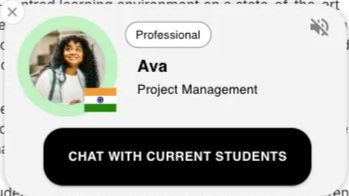
CampusThreads V1 popcard with a student profile and chat button

V1 popcard

A corner card links prospects to the full widget.
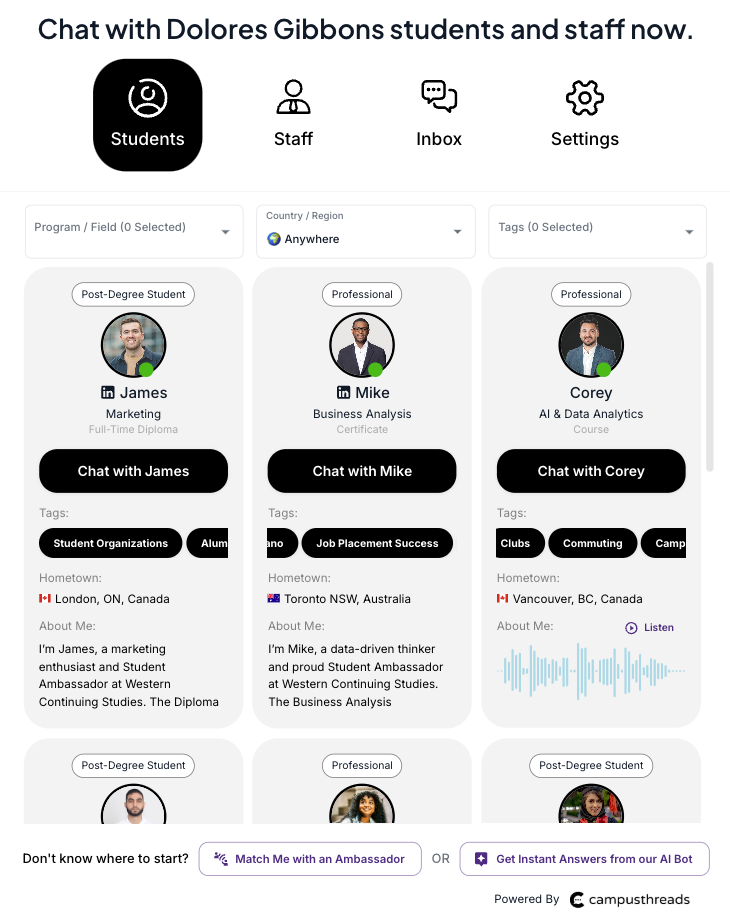
Standalone CampusThreads widget with student and staff profiles

Full widget

Student and staff profiles appear on a hosted page or within your website.
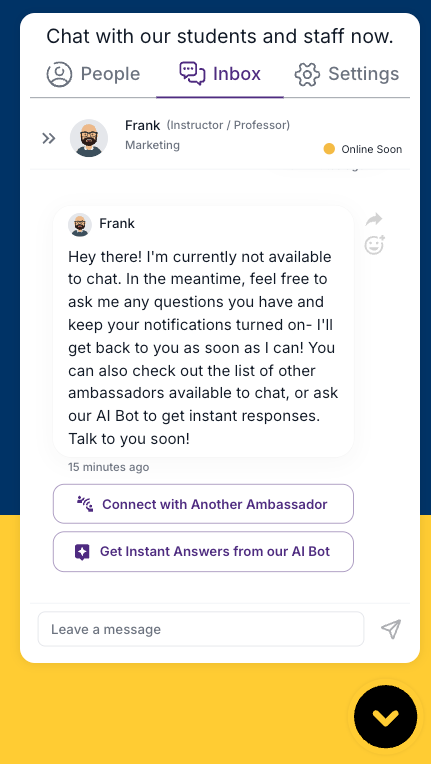
CampusThreads V2 chat window joined to its corner launcher

V2 corner chat

The launcher and chat window stay together in the corner.

Screenshots from the original embedding guide. Your school’s branding and enabled features determine the appearance.

No embed

Share the standalone chat page

Link to this address from your website, emails, or QR codes. No embed script or popcard is needed.

Standalone chat URL
https://connect.campusthreads.co/your-school-slug
V1

Show a popcard that opens the hosted chat page

Add this script inside the <body> of the page where you want the popcard. Its chat button opens your standalone chat page in a new tab.

V1 popcard script
<script defer  src="https://connect.campusthreads.co/embed.js"  data-school="your-school-slug"  data-popcard="true"></script>
V1

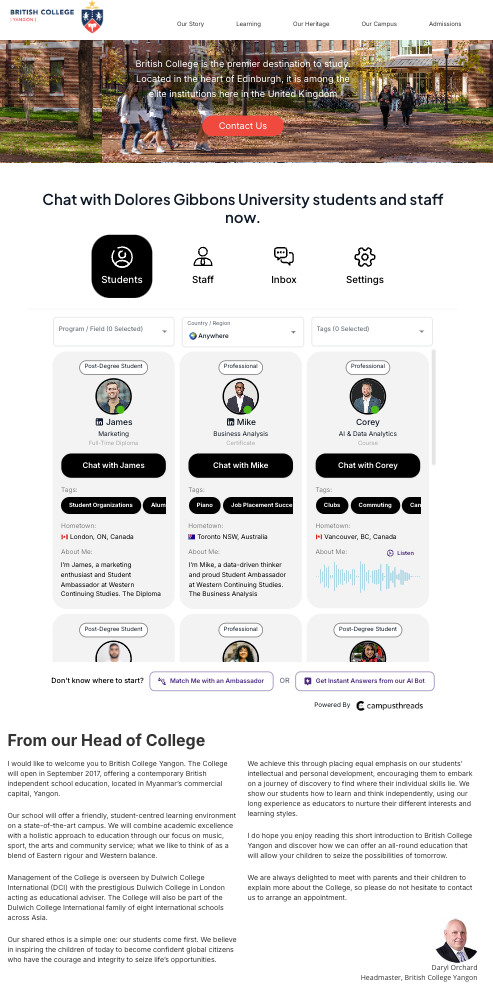
Place the widget inside a webpage

Paste this block where you want the widget to appear. The first line creates the container; the script fills it with your school’s widget.
V1 inline container and script
<div id="ct-container"></div><script defer  src="https://connect.campusthreads.co/embed.js"  data-school="your-school-slug"  data-anchorid="ct-container"></script>
CampusThreads widget within a school webpage
The original guide’s example of a full widget within a school webpage.

Page height: the inline widget adjusts to the available viewport height and accounts for fixed or sticky headers. If your header needs a specific offset, add data-offset-top="96" to the script and replace 96 with the required top offset in pixels.

V1

Show a popcard and inline widget on the same page

Paste this block where the full widget belongs. The popcard appears in the corner and its chat button scrolls to the inline widget. The popcard hides while the inline widget is in view.

V1 popcard and inline widget
<div id="ct-container"></div><script defer  src="https://connect.campusthreads.co/embed.js"  data-school="your-school-slug"  data-anchorid="ct-container"  data-popcard="true"></script>
V1

Send the popcard to a widget on another page

The popcard and target widget must be on the same hostname. For example, place the popcard at https://example.edu and the widget at https://example.edu/future-students.

On the target widget page

Paste this block where you want the full widget.

Target page container and script
<div id="ct-container"></div><script defer  src="https://connect.campusthreads.co/embed.js"  data-school="your-school-slug"  data-anchorid="ct-container"></script>

On the page with the popcard

Add this script inside the page’s <body>. Replace the highlighted path with your target page’s path. The chat button opens that page in a new tab and scrolls to its widget.

Popcard linking to the target page
<script defer  src="https://connect.campusthreads.co/embed.js"  data-school="your-school-slug"  data-path="future-students"  data-popcard="true"></script>
V2

Open chat in the corner of your website

Add this script inside the target page’s <body>. It creates the corner launcher and its chat window together. A separate inline container is not needed.

V2 conjoined chat script
<script defer  src="https://connect.campusthreads.co/embed.js"  data-school="your-school-slug"  data-layout="conjoined"></script>

Open the V2 demo in a new tab ↗

Check your installation

  1. Save and publish the webpage, then open its public URL outside your website editor.
  2. Check the widget on a desktop and a phone. For a popcard, press its chat button and confirm it opens or scrolls to the intended chat.
  3. Confirm the correct school and intended ambassadors appear. Review colors and text in Widget Customization → Popcard; available controls vary by version.

Troubleshooting

The widget or launcher does not appear

Check the school slug, then verify the website hostname under Widget Customization → Security. Ensure the live page contains the embed script and that your website editor has not removed it. An inline embed also needs its matching ct-container element. For V2, the launcher stays hidden until the widget is ready.

The widget loads but no ambassadors appear

Confirm your intended ambassadors are active and visible for chat. Check their chat availability and the Show Unavailable Ambassadors option in Widget Customization → Ambassador Profiles. A working embed can still have no eligible profiles to display.

The website editor displays code as text

Use an HTML, custom-code, or embed block that permits scripts. A rich-text paragraph block will display the snippet rather than run it. Some website platforms restrict scripts to particular plans or administrator roles.

The popcard opens the wrong page

Check data-path on the page with the popcard. Use a path such as future-students, and confirm that page is on the same hostname and contains the inline widget. Omit data-path when the popcard should open the standalone chat page.

The site’s security policy blocks the embed

Ask your website team to check the browser console and the site’s Content Security Policy. The page needs to load the script from connect.campusthreads.co and frames from connect.campusthreads.co and, for popcards, ct-popcard.web.app. Browser extensions or consent tools may also prevent scripts from loading.

Copy does not work in my browser

Select the code in the block and press Command+C on Mac or Ctrl+C on Windows. Replace the highlighted example values before publishing.

Need help? Send the CampusThreads team the public page URL and the layout you selected. Your website team can include any browser-console errors to help us identify the issue.